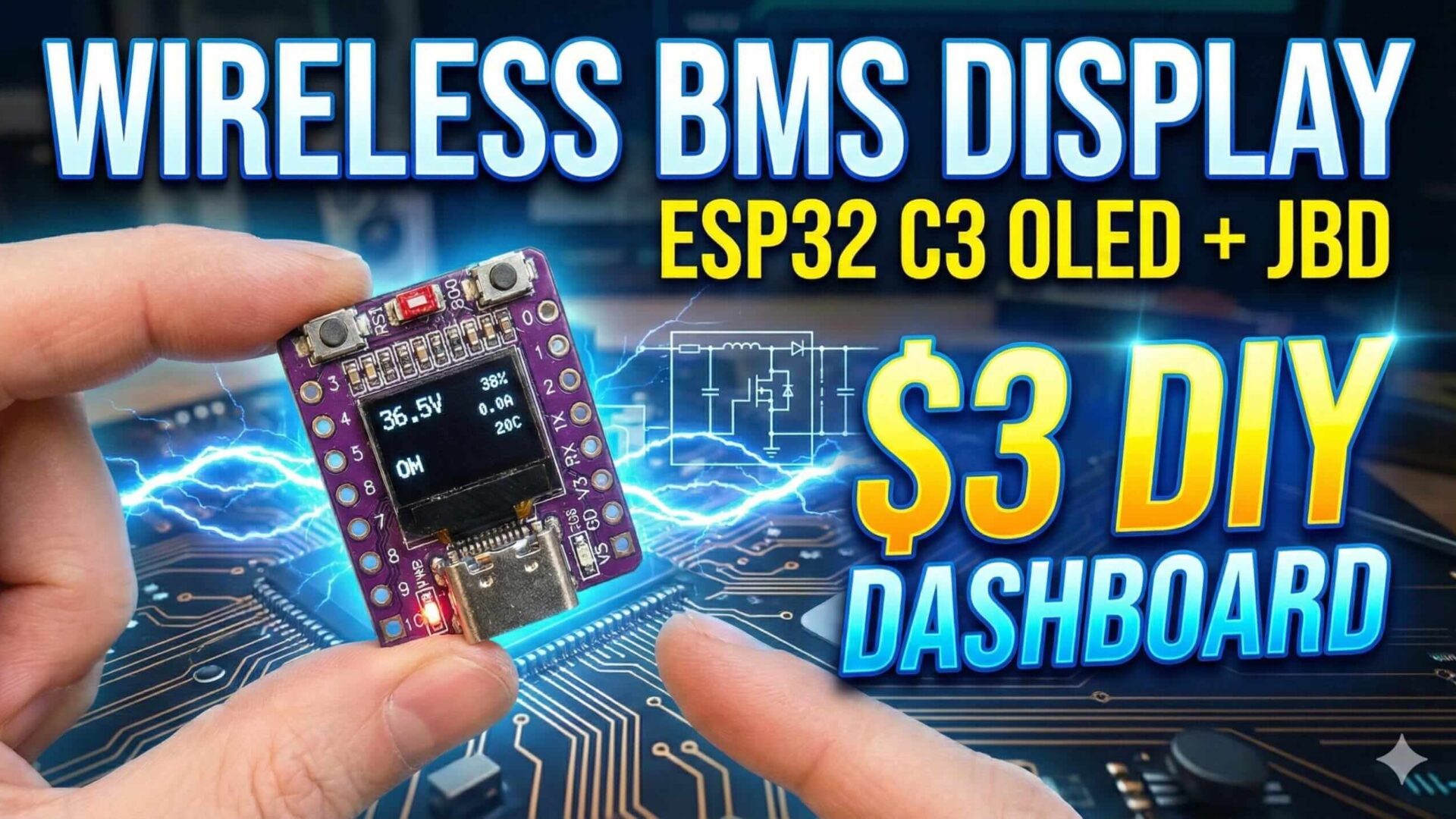
Transform your battery monitoring with this incredible $3 DIY project! ? In today’s video, I’m showing off my latest custom firmware for the tiny ESP32-C3 0.42″ OLED board. This little device acts as a completely wireless mini-dashboard for JBD BMS units, pulling real-time data like voltage, current, and battery percentage directly to the built-in screen.…
7 MIN READ FIELD-TESTED BUILD
Category
Code & HW
Reading time
7 min
Published
2026
Transform your battery monitoring with this incredible $3 DIY project! ? In today’s video, I’m showing off my latest custom firmware for the tiny ESP32-C3 0.42″ OLED board. This little device acts as a completely wireless mini-dashboard for JBD BMS units, pulling real-time data like voltage, current, and battery percentage directly to the built-in screen. It’s the perfect budget-friendly solution for anyone building their own power walls or e-bike batteries. Let’s dive in!”
If this is your first time using ESP32-C3, you may need to install USB drivers (CH340 or CP2102). Windows usually installs these automatically.
3
Flash Firmware to ESP32
STEP 3.1
Connect ESP32-C3
Connect your ESP32-C3 to your computer using a USB-C cable. Wait for the operating system to recognize the device and assign a COM port.
Windows: COM3, COM4, COM5, etc.
Linux: /dev/ttyUSB0, /dev/ttyUSB1
macOS: /dev/cu.usbserial-XXXX
STEP 3.2
Configure PyFlasher Settings
Open NodeMCU-PyFlasher and configure the following settings:
Setting
Value
Serial port
Select your ESP32-C3 COM port
NodeMCU firmware
Browse and select firmware.bin
Baud rate
460800 (use 115200 if flashing fails)
Flash mode
DIO
Erase flash
yes, wipes all data
STEP 3.3
Flash the Firmware
Click “Flash NodeMCU” button and wait for the process to complete. You’ll see progress indicators and a “Success” message when done.
⚠️ Troubleshooting Flashing Issues
If flashing fails, try these steps:
Lower baud rate to 115200
Use a different USB cable
Hold BOOT button while connecting USB
Try a different USB port
4
First Power On
STEP 4.1
Splash Screen
After flashing, the device will automatically restart and show the splash screen for 2 seconds.
Splash Screen (2s)
ESP32-C3
BMS Monitor v1.0
STEP 4.2
Initial Screen (No BMS)
Since no BMS is configured yet, you’ll see the main screen prompting you to add a BMS.
Screen 1 – No BMS
–.-V –%
Add BMS Hold BOOT 2s
5
Add Your BMS – Step by Step
📡 Before You Start
Make sure your JBD/Xiaoxiang BMS is powered on and within 10 meters range. The BMS should not be connected to any other device via Bluetooth.
STEP 5.1
Enter Config Menu
From the main screen, hold the BOOT button for 2 seconds to enter the configuration menu.
BOOT Button (Hold 2s)
➜
Config Screen 1
— CONFIG —
Status: No BMS Press: Next screen
STEP 5.2
Navigate to “Search BMS”
Press the BOOT button once to move to the “Search BMS” screen. The device will automatically start scanning for nearby BMS devices.
BOOT Button (1x Press)
➜
Config Screen 2
— SEARCH BMS —
Scanning… ● Searching
STEP 5.3
Wait for BMS Discovery
The device will scan for available BMS devices. Found devices will appear in a scrolling list showing their names.
Search BMS
Search BMS
JBD-SP04S20A
XM-BMS-13S
JBD-4S-100A
💡 Tip
The list will automatically scroll through all found devices (3 visible at once). Wait until you see your BMS name appear.
STEP 5.4
Enter Selection Mode
When you see your BMS in the list, hold the BOOT button for 2 seconds to enter selection mode. The list will stop scrolling.
BOOT Button (Hold 2s)
➜
Selection Mode
SELECT BMS:
> JBD-SP04S20A Press: Next | Hold: Select
STEP 5.5
Select Your BMS
Use short presses to cycle through the found BMS devices. The selected BMS will be highlighted with a white background on the display.
Selection Mode
Search BMS
JBD-SP04S20A XM-BMS-13S
JBD-4S-100A
STEP 5.6
Confirm Selection
When your desired BMS is highlighted, hold the BOOT button for 2 seconds to confirm the selection. You’ll automatically move to the “Save & Exit” screen.
BOOT Button (Hold 2s)
➜
Config Screen 3
– SAVE & EXIT –
XM-BMS-13S Hold: Save & Exit
STEP 5.7
Save Configuration
On the “Save & Exit” screen, hold the BOOT button for 2 seconds to save your BMS configuration and return to the main screen.
BOOT Button (Hold 2s)
➜
Saved!
Configuration
Saved!
Connecting…
✅ Success!
Your BMS is now saved. The device will automatically connect to it whenever it’s powered on and within range.
6
Using the BMS Monitor
Automatic Connection
Once configured, the device will automatically connect to your BMS on power-up. You’ll see the connection status on screen.
Connecting…
–.-V –%
Connecting… XM-BMS-13S
Screen 1: Main Data
The main screen displays real-time battery information including voltage, power consumption, state of charge, current, and temperature.
Screen 1 – Connected
52.4V85%
23.5A
1200W28C
Screen 2: Cell Voltages 1-8
Press the BOOT button once to view individual cell voltages for cells 1-8. This helps identify imbalanced cells.
Screens cycle in order: 1 → 2 → 3 → 1. Each short press of the BOOT button advances to the next screen. Screens 2 and 3 are only accessible when connected to a BMS.
7
Complete Button Controls
Screen
Action
Result
Main Screen (Connected)
Short Press (1x)
Next data screen (1→2→3→1)
Main Screen (Not Connected)
Short Press (1x)
Stay on screen 1
Any Main Screen
Long Press (2s)
Enter config menu
Config Screen 1
Short Press (1x)
Go to screen 2 (Search BMS)
Config Screen 2 (Scanning)
Long Press (2s)
Enter selection mode
Config Screen 2 (Selection Mode)
Short Press (1x)
Next BMS in list
Config Screen 2 (Selection Mode)
Long Press (2s)
Confirm selection, go to screen 3
Config Screen 3
Short Press (1x)
Go back to screen 1 (Status)
Config Screen 3
Long Press (2s)
Save configuration and exit
8
Troubleshooting
❌ ESP32 Not Detected During Flashing
Install CH340 or CP2102 USB drivers for your OS
Try a different USB cable (must support data transfer, not charge-only)
Check Device Manager (Windows) or ls /dev/tty* (Linux/Mac) to verify port
Try a different USB port on your computer
❌ Flashing Process Fails
Lower baud rate to 115200 instead of 460800
Enable “Erase flash: yes” option before flashing
Hold the BOOT button on ESP32 while connecting USB cable
Press RESET button on ESP32 and try flashing again
❌ No BMS Found During Scan
Ensure your BMS is powered on (battery must be connected)
Move ESP32 closer to the BMS (within 5-10 meters)
Verify your BMS is JBD/Xiaoxiang compatible
Disconnect any other Bluetooth devices from the BMS
Restart both ESP32 and BMS, then try scanning again
❌ Connection Keeps Dropping
Check if BMS is entering sleep mode (some BMS sleep after inactivity)
Reduce distance between ESP32 and BMS
Ensure there are no physical obstructions (metal boxes, walls)
Check battery voltage – very low voltage may affect BMS Bluetooth
❌ Display Shows Incorrect Data
Wait 10-15 seconds for initial connection to stabilize
Verify your BMS protocol is compatible (JBD/Xiaoxiang only)
Power cycle both devices and reconnect
Check if BMS is in protection mode (disconnect from charger/load)
❌ OLED Display Not Working
Check if you received the correct hardware version (ESP32-C3 with OLED)
Re-flash the firmware with “Erase flash: yes” option
Contact hardware supplier if display never showed anything
9
Advanced Features
🔄 Changing BMS Configuration
You can change to a different BMS at any time by entering the config menu and following the same setup process. The new BMS will replace the old one.
🔌 Auto-Reconnection
The device automatically remembers your BMS and reconnects on every power-up. No need to reconfigure unless you want to change to a different BMS.
💾 Persistent Storage
BMS configuration is stored in ESP32’s non-volatile memory (NVS). It survives power cycles and firmware updates (unless you erase flash during re-flashing).




JOIN THE CONVERSATION
WHAT WOULD YOU CHANGE IN THIS PROJECT?